 S2Nodes
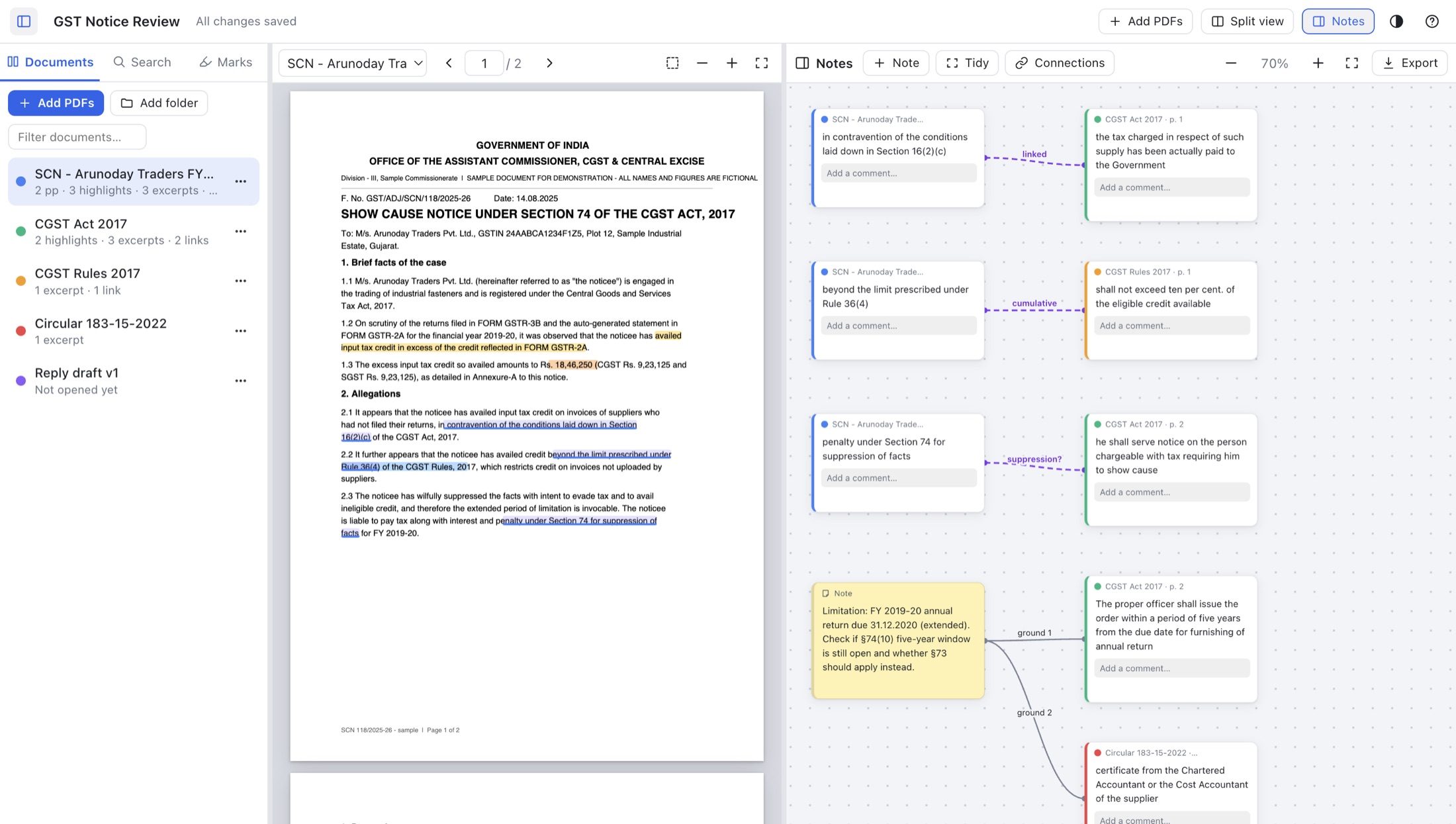
SideNotes in six screens
A walk through a real working session: reviewing a GST show-cause notice against the CGST Act, Rules and a circular. All screenshots are from SideNotes 1.0.0. The documents are fictional samples.
One window for the whole matter
Add PDFs one by one, a whole folder (sub-folders too) or drag them in. The list on the left shows what you've done in each one.
- Select text and a small toolbar appears: highlight in 5 colours, Excerpt, Comment, Link or Copy.
- Drag a box around a table or stamp to excerpt it as a picture.
- Everything auto-saves to one small
.sidenotesfile.
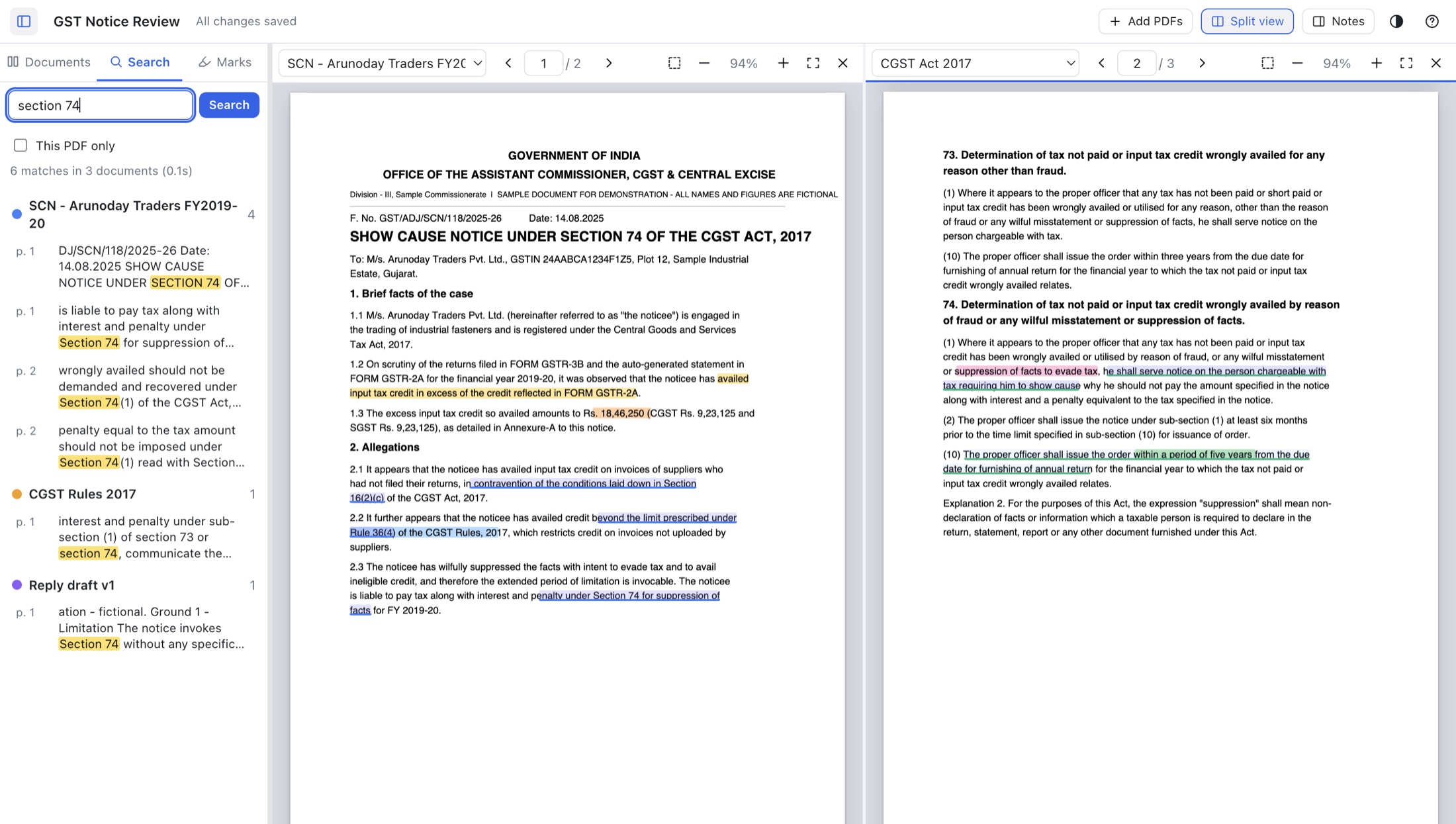
The notice and the Act, side by side
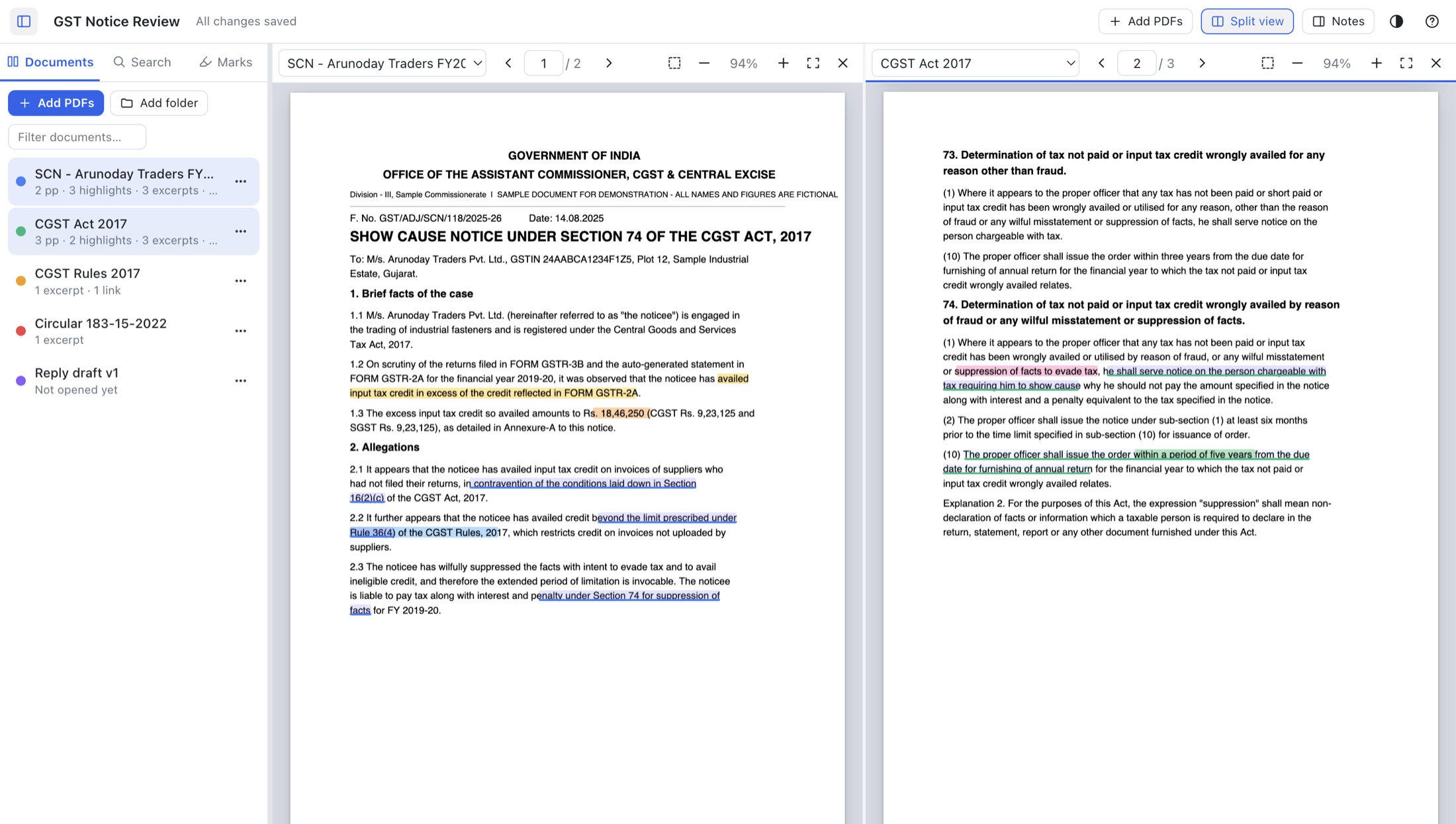
Press Split view (⌘/Ctrl Shift D) to read two PDFs at once. Each pane has its own page, zoom and find bar.
- Dotted underlines mark linked passages. Click one to jump straight to the other end.
- Highlights stay in the project. Your original PDFs are never changed.
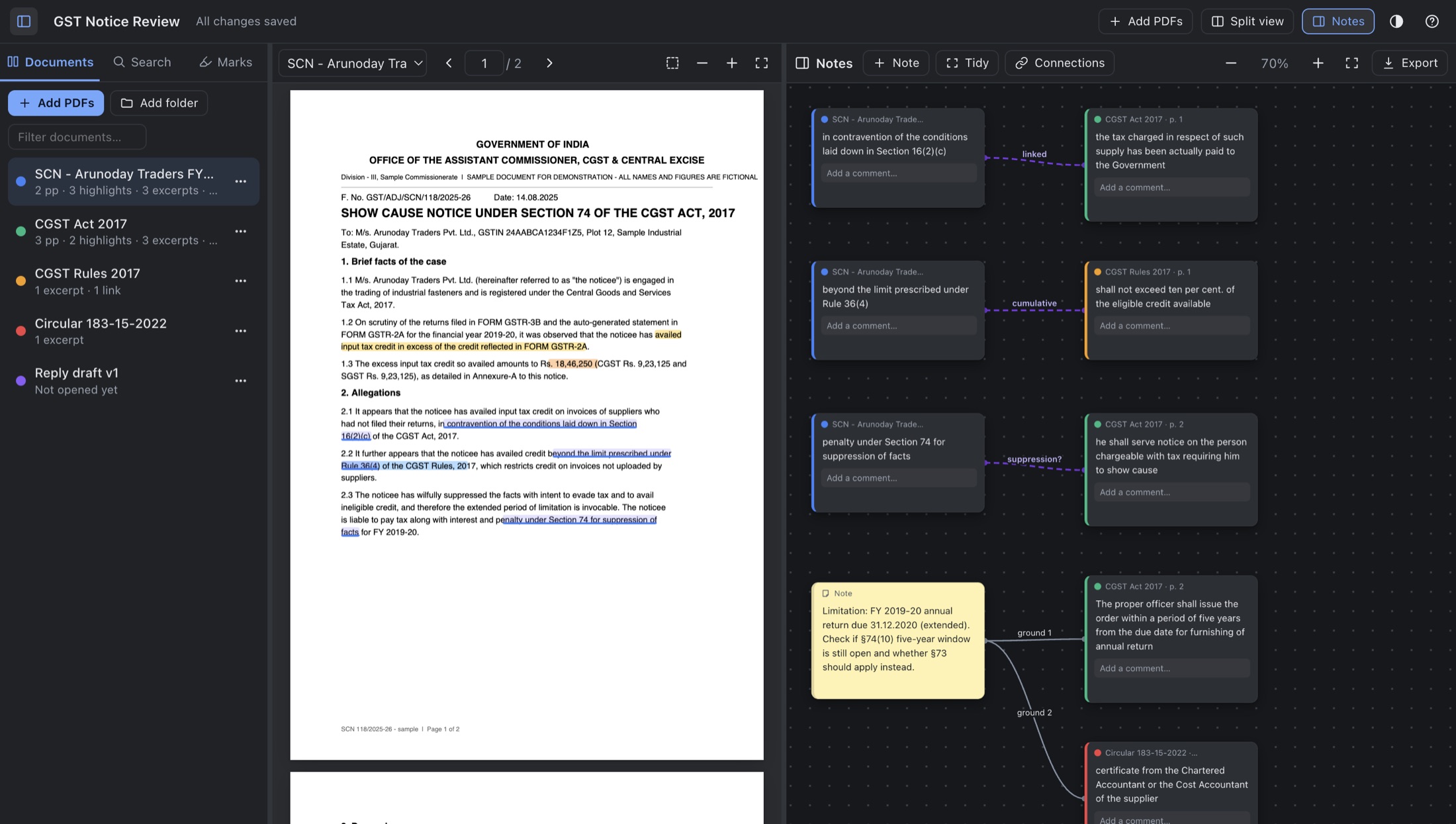
Think on a board, not in a notebook
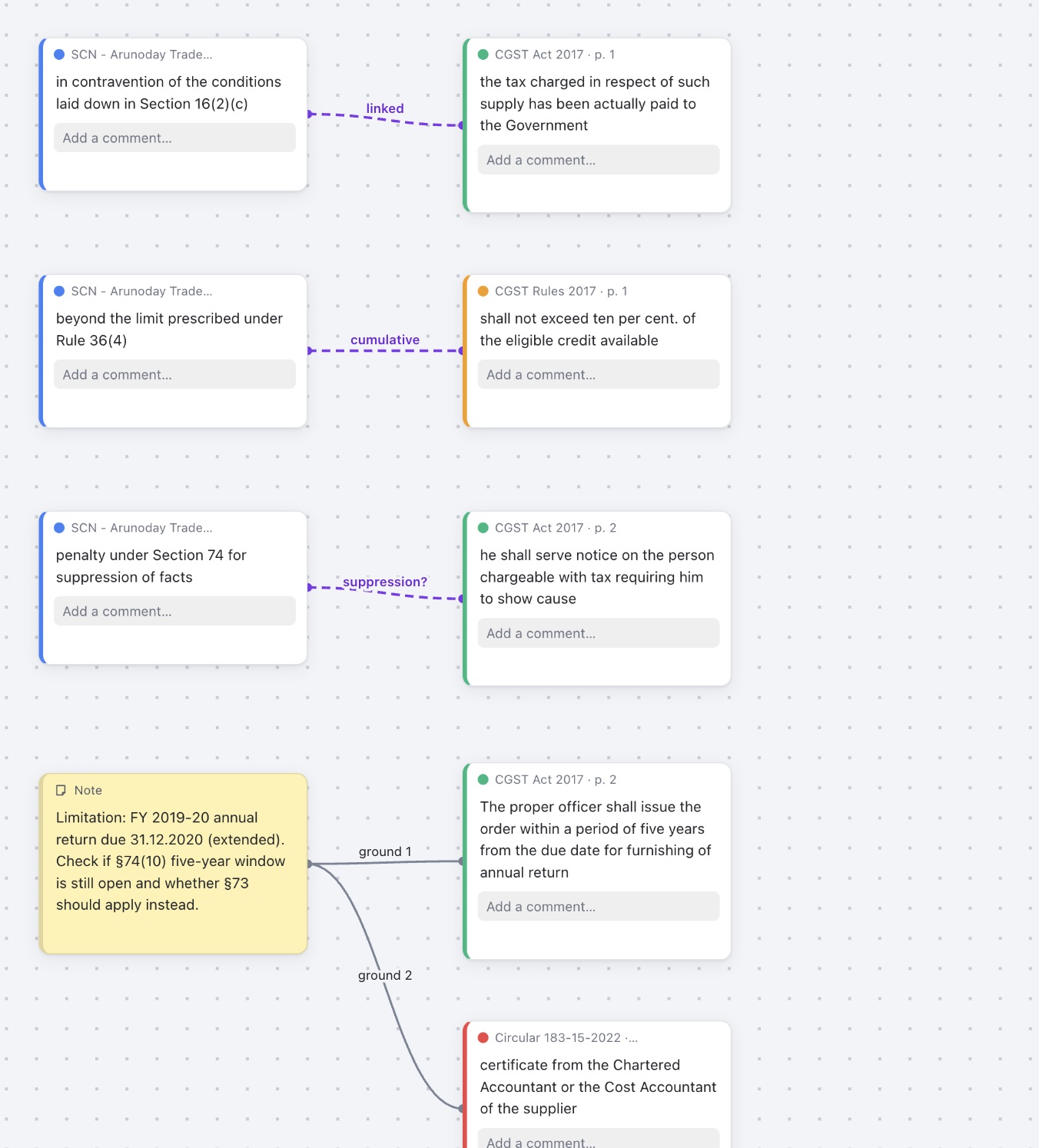
Every excerpt becomes a card that remembers its PDF and page. Click the coloured tag to jump back to the source.
- Purple dashed lines are links between passages in different PDFs, with your reason as the label.
- Your own notes sit beside them. Drag from a card's edge to wire them together.
- Cards never overlap. Press Tidy for neat columns.
See how your documents connect
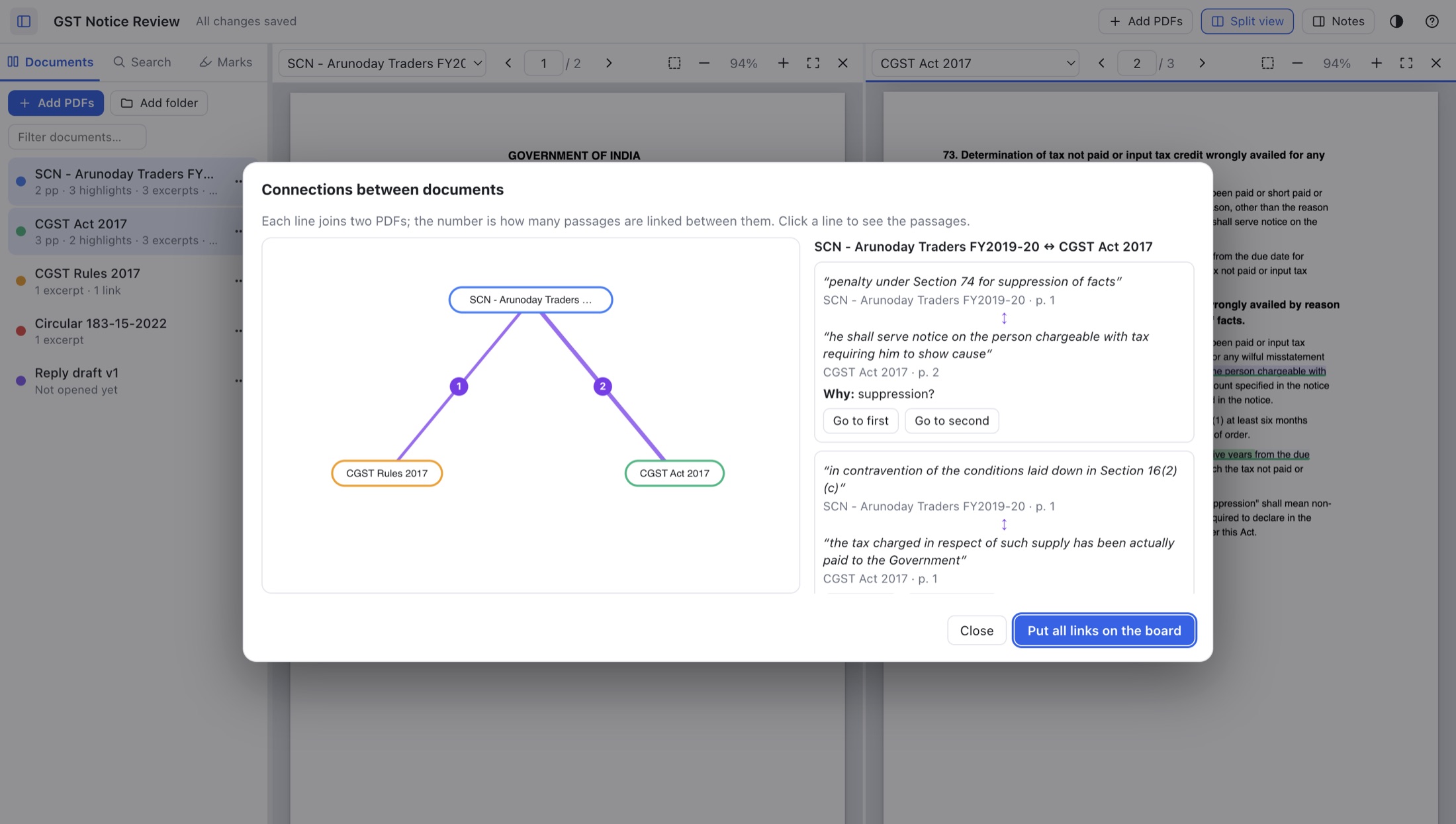
Connections draws a map of the documents you've linked and how often. Click a line to read each pair of passages and the reason you linked them.
- Put all links on the board in one click.
- Export the map as an .svg image, or as a "Connections between documents" table in Word, PDF, Markdown or HTML.
Find it in every PDF at once
Search across every document in the project. Results are grouped by PDF with page numbers, and clicking one lands on the exact words.
- This PDF only narrows the search to the open document.
- ⌘/Ctrl F opens a find bar inside the PDF, and ⌘/Ctrl Alt F searches your notes.
Comfortable at any hour
Choose light, dark or match your computer. PDF pages can be shown normal, warm (soft sepia) or dark for night reading. The board can be dotted, grid or plain.
These are display settings only. Exports and picture excerpts always use the original page.
Try it on your own documents
For Mac and Windows. 7-day free trial · early release v1.1.0.